
|
|||||||

|
|||||||
|
|||||||

|
|||||||
Configuring Microsoft Outlook (Continued)
8. Select POP3 in the "My incoming mail server is a ______ server" list. Enter your E-mail Server Names. Replace "mail.example.com" with mail.yourdomain. Click Next

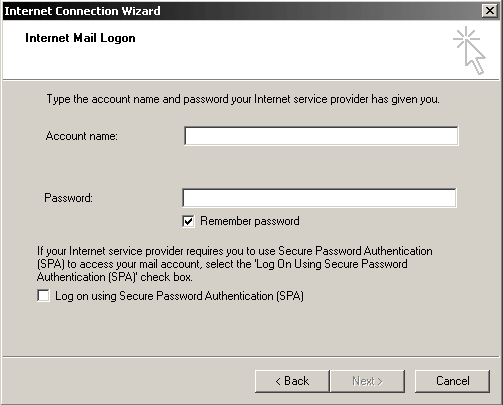
9. Enter your e-mail account information. This information
was assigned to you when you setup the e-mail address in your Control Panel.
Account Name: userid@example.com
Password: Your password
Click Next to proceed.
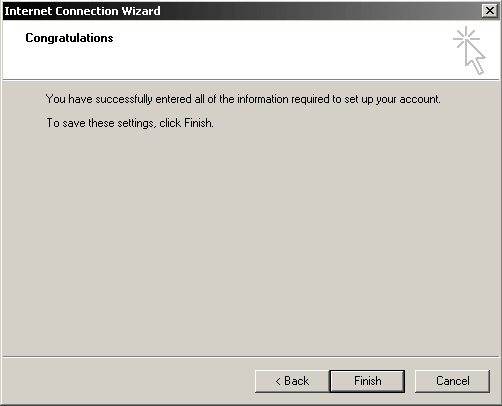
10. Click Finish to end the wizard.
11. Return to the Internet Accounts window. Click on the Tools menu and Select Accounts from the drop-down menu. You will see the new account . Highlight it and click on Properties.
12. In the Internet Accounts dialog box. Double click on the account that you just created. Click on the Advanced tab.
13. Under the Server Port Numbers heading, check if Outgoing mail (SMTP) is 25 and under the Server Timeouts, change it from 1 minute to 2 minutes. Then Click Apply.

14. Choose the "Servers" tab.
15. Check the box next to "My server requires authentication."
16. Click the "Apply" button. Click Ok
Previous Page
For additional help please see IMail - Configuring with Outlook
Copyright © 1995- Sidetrips™ Internet Services, Inc. All rights reserved.
Reproduction in whole or in part in any form or medium without express
written permission of Sidetrips Internet Services, Inc. is prohibited.
sidetrips.com™, hostserver.com™, registera.com™, htmlshop.com™,
and associated domains are trademarks of Sidetrips™ Internet Service, Inc.
Privacy Policy | Acceptable Use Policy | Terms of Service
