
|
|||||||

|
|||||||
|
|||||||

|
|||||||
Manual | Microsoft Outlook 2002, Outlook 2003, Outlook 2007
In all examples please replace example.com with your domain name. The email address youremail@example.com should be replaced by your email address. Do not include the www. in front of your domain unless the instructions specifically say to do so. Click on the
 icon for screen shots.
- Start your Outlook software.
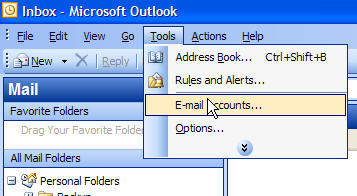
- On the menu bar click Tools and select Email Accounts
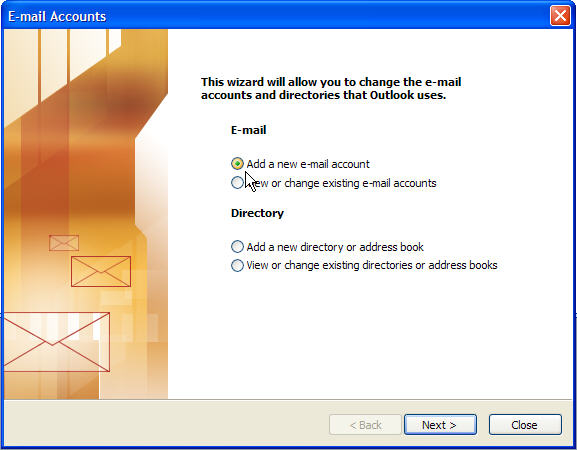
- On the first E-mail Accounts screen, select Add a new e-mail account and click Next.
- On the second E-mail Accounts screen, select POP3 as the Server Type and click Next.
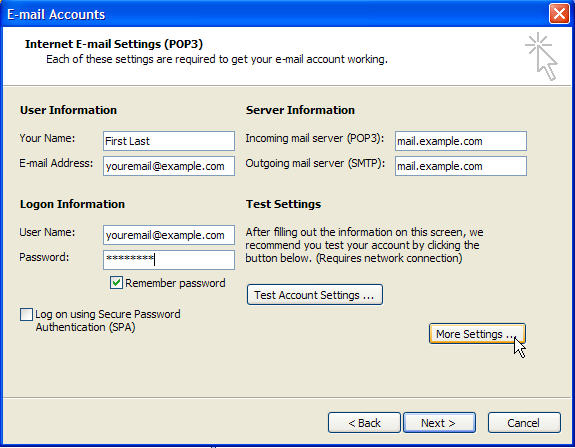
- On the Internet E-mail Settings (POP3) screen enter your specific account information. Please refer to the typical setup screen image below.
- Enter your First and Last name
- Enter your Email Address
- Enter your User Name which is your complete email address - Note: youremail@example.com should be replaced by your email address.
- Enter your Password - Note: You may check Remember Password box.
- Enter your Incoming and Outgoing Mail Server - Note: example.com should be replaced by your domain name without the www..
- Click on the More Settings button and refer to the instructions below to complete the email account setup.
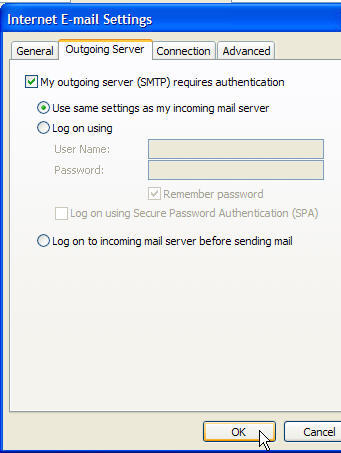
- Select the Outgoing Server tab.
- On the Outgoing Server tab, check the box that says My Outgoing Server (SMTP) requires authentication.
- Click OK and Finish to complete the setup.

On the More Settings screen
 |
 |
Congratulations! You have successfully setup your POP email software. Click Finish to end.
Copyright © 1995- Sidetrips™ Internet Services, Inc. All rights reserved.
Reproduction in whole or in part in any form or medium without express
written permission of Sidetrips Internet Services, Inc. is prohibited.
sidetrips.com™, hostserver.com™, registera.com™, htmlshop.com™,
and associated domains are trademarks of Sidetrips™ Internet Service, Inc.
Privacy Policy | Acceptable Use Policy | Terms of Service
